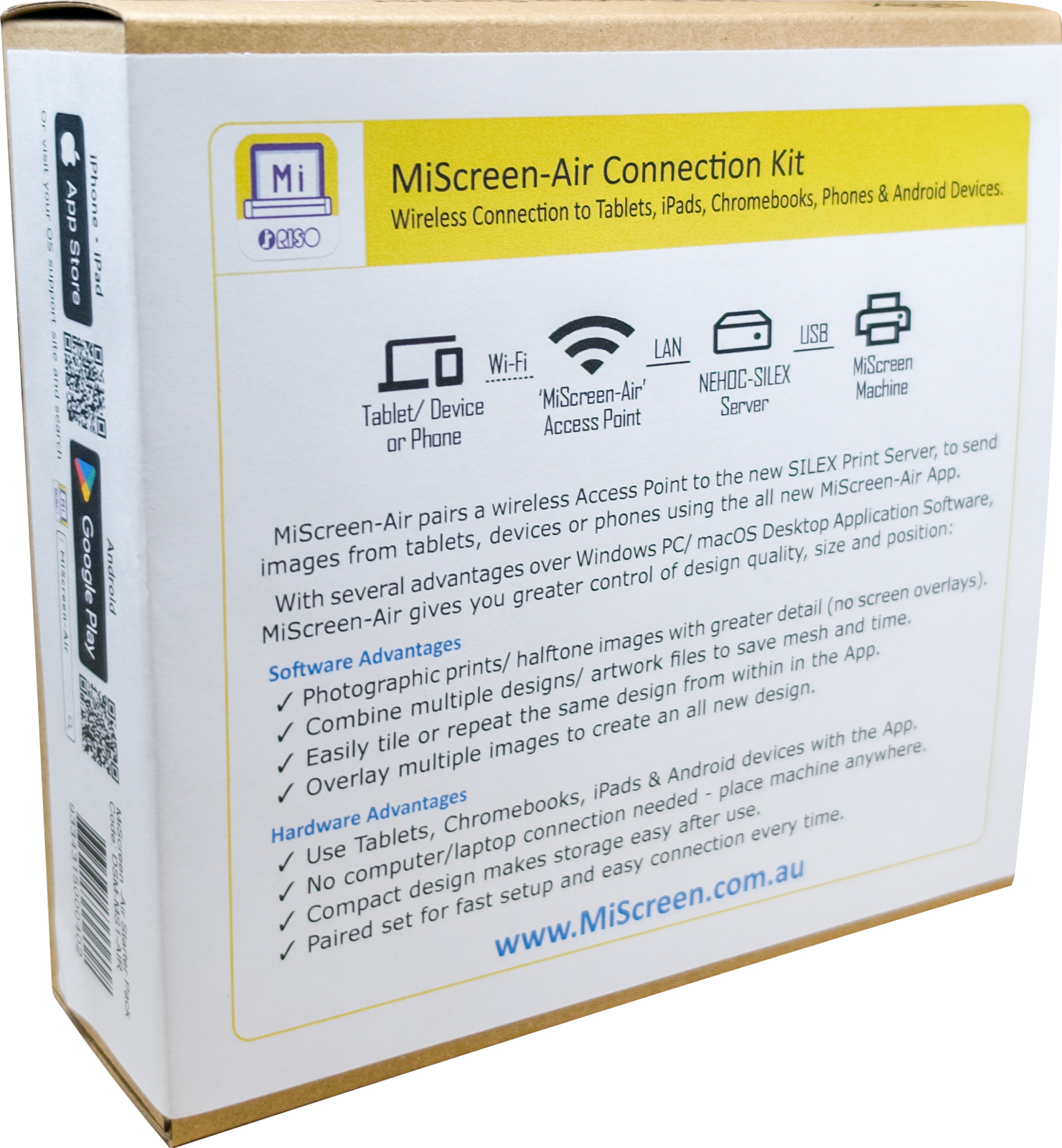
Wireless MiScreen Connection to Tablets, iPads, Chromebooks, Phones & Android Devices.
MiScreen-Air enables iPads/ Android Tablets/ Phones & Chromebooks to directly connect over Wi-Fi to the MiScreen machine (no more computer only connection).
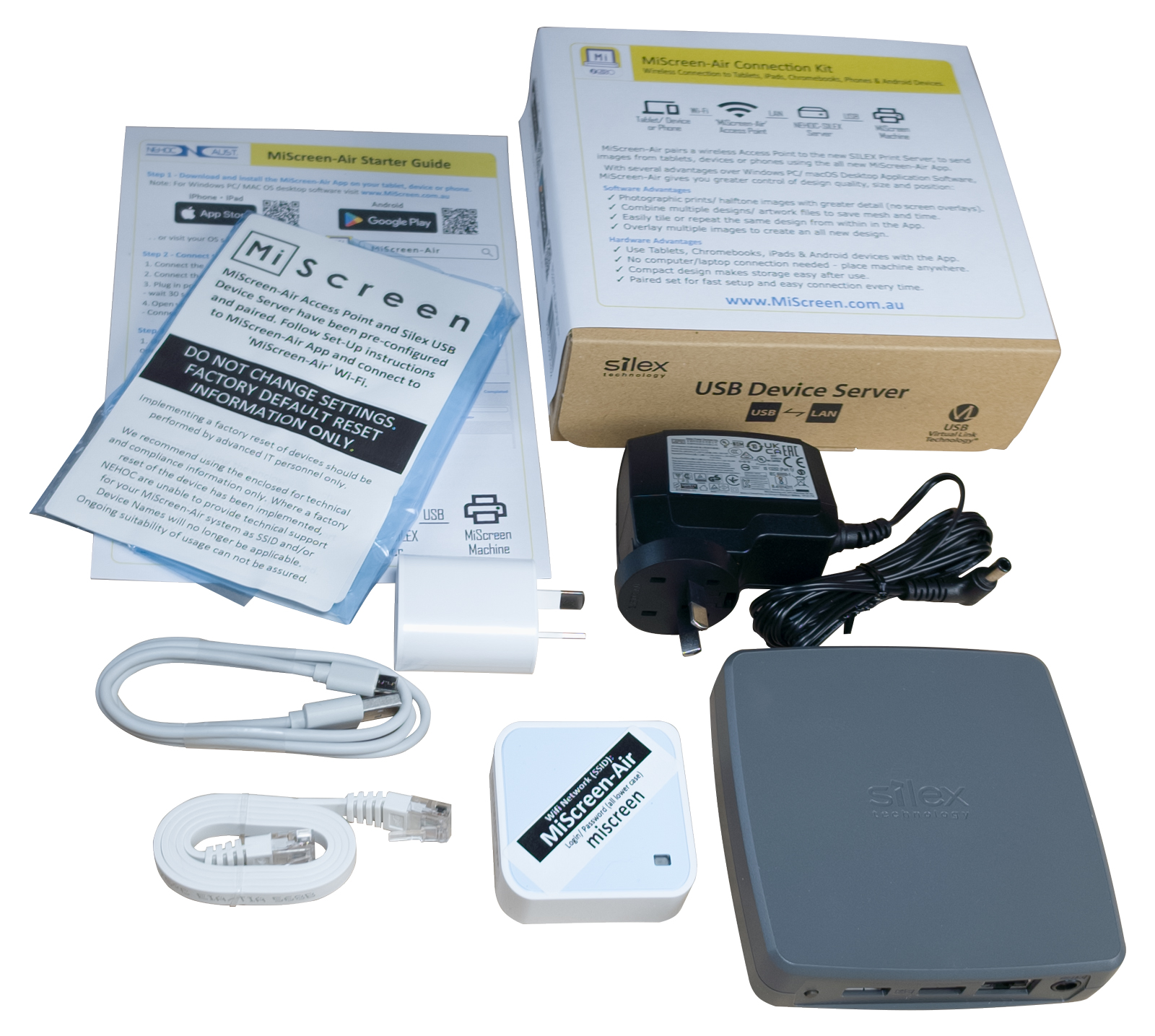
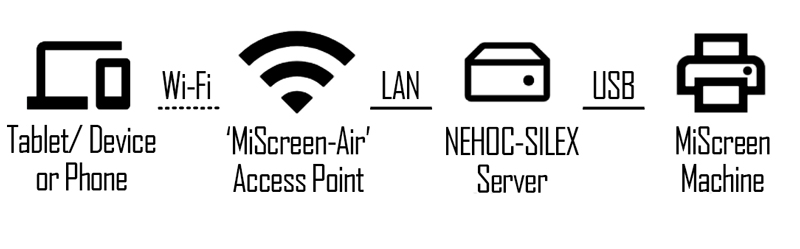
MiScreen-Air pairs a wireless Access Point to a NEHOC- SILEX Print Server, both of which have been programmed and paired together, to send images from tablets, devices or phones using the all new MiScreen-Air App.
With several advantages over Windows PC/ macOS Desktop Application Software, MiScreen-Air gives you greater control of design quality, size and position whilst removing the need to connect to a computer. In App photo printing is more detailed with inbuilt adjustable dot screening - try the App yourself now.
Software App Advantages
Hardware Advantaged
Try The App Now
Available online now, it's free do install and try without connecting a MiScreen device.
Use iPads, Android Tablets, Chromebooks, iPhones and devices with the App.
Note: Once app is installed, a connection to the NEHOC-SILEX print server is required to print.
Safe and Secure Using Local WiFi
Designed for use in schools without IT issues, no internal network connections and no internet concerns, the MiScreen-Air Connection Kit uses a programmed unique 'closed loop' WiFi that only communicates between the MiScreen-Air App and NEHOC-SILEX Print Server (connected to MiScreen machine).
- No data collection or data sharing is used within the App.
- WiFi connection is not public, a simple password is used and labelled on each Access Point supplied.
- Connection is local between the App and the local WiFi - there is no WiFi connection to the internet enabled making it impossible for students to connect. In addition the school or business firewall will not block a connection, as there is no attempt to make any connection.
- Access Point has Internet Access turned off as it is not required for this application.
- No IP address or dedicated Newtork IP required, DCHP is active as only connects to the local NEHOC-SILEX Print Server nothing else.
- App connection is to the local 'MiScreen-Air WiFi' this will not appear on any wired school/ office network or attempt to make an outside connection.
With security concerns always a large part of the broader IT system, the MiScreen-Air system has been designed and programmed to be simple, fast to connect and local to avoid ongoing issues and external problems.
All you have to do is download the App . . .which itself is verified by both Apple and Google Play stores.
Fast and Easy Connection
Step 1 - Download and install the MiScreen-Air App on your tablet, device or phone
Apple App Store | Google Play Store . . or visit your OS support site and search.

Step 2 - Connect to MiScreen-Air
1. Connect the LAN cable between the Access Point and NEHOC-SILEX Device
2. Connect the MiScreen USB into the NEHOC-SILEX Server USB Left Side Port.
3. Plug in power to both the Access Point and NEHOC-SILEX Device and turn both on.
4. Open the Wireless Network Settings on your device and connect to WiFi network ‘MiScreen-Air’, enter password as shown on the top of the Access Point.
Step 3- Pair the MiScreen-Air App to NEHOC-SILEX Server
Note: Pairing is only required on initial use, when connection repair is required or as a new user connects - afterwards setup is automatic and this step is not required.
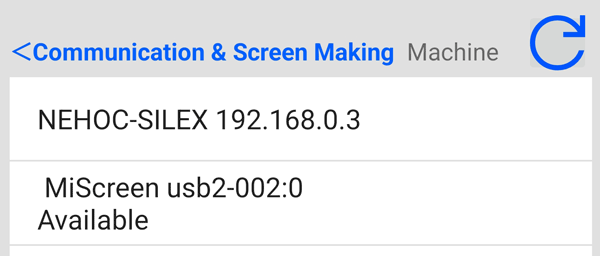
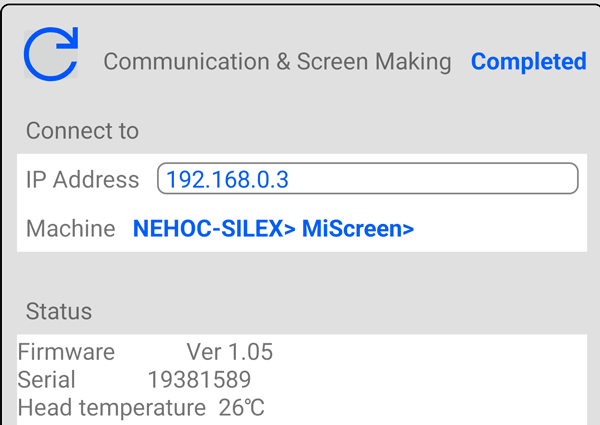
1. Open the MiScreen-Air App, and select 'Print' icon to open ‘Communication & Screen Making’ options. 2. Select the Available MiScreen USB connection. - Select MiScreen usb option (not NEHOC-SILEX LAN) - Available USB number may vary to image. |
 |
| 3. Exit screen to previous menu, press ‘Completed’ and
confirm Connected to: NEHOC-SILEX > MiScreen displayed.
- Machine details will be displayed. Note: Serial and details will differ to image. |
 |

Use Less Mesh
Add/ import multiple designs into the work area in the App to create one screen.

Free App Software
Easy to install free software allows multiple users, with Android and MAC supported.
Multiple Applications
70/120/200Mesh provides sharp prints onto fabrics, paper, canvas, ceramics, plastics and so much more.
Saves Time
Fast App connection with pre-programmed devices (set-up only required first time).

Fast Operation
Design to imaged screen in under a minute, has you applying ink in under two minutes - that's fast!

Low Usage Cost
Mesh cut to size reduces waste. Mesh can be single use or re-used. Available in short or long lengths.
Superior Quality
Server Grade NEHOC-SILEX Hardware handles print data transfers with no loss of quality in artwork transfers for superior photos and print quality.
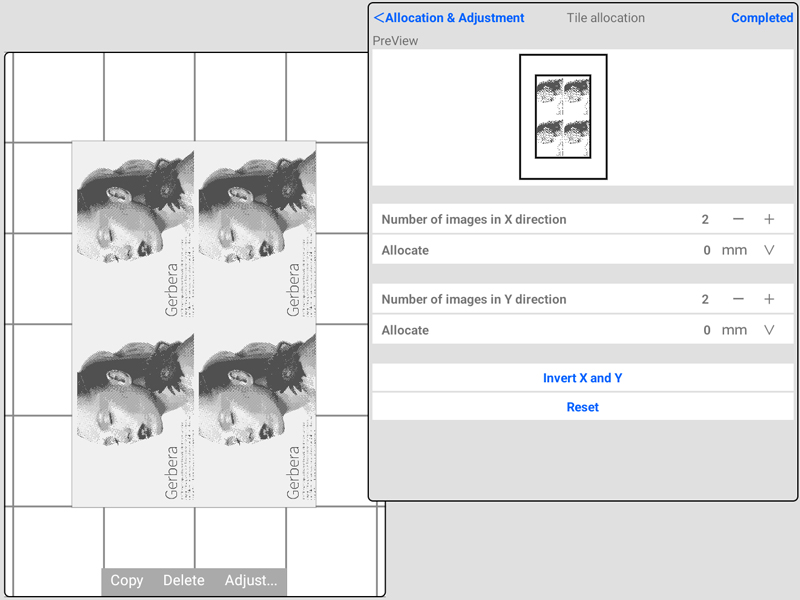
Lower Screen Costs
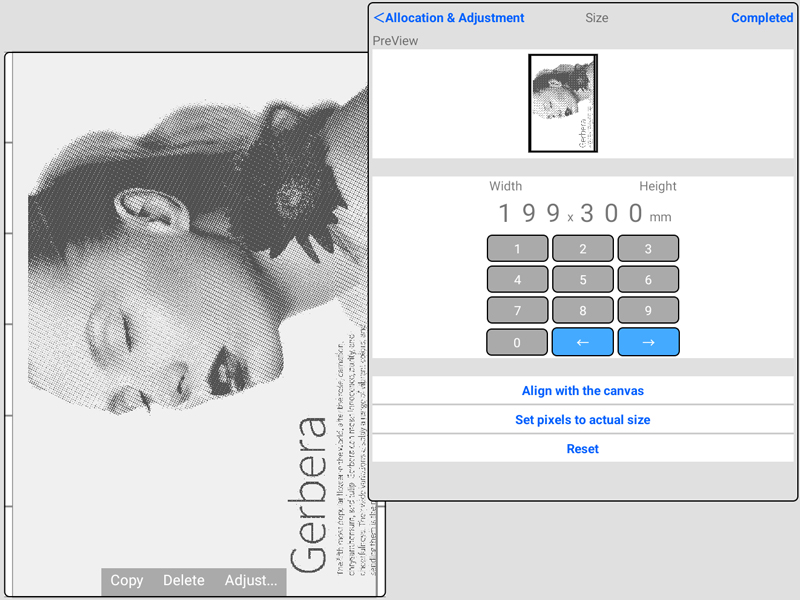
Add multiple designs by importing separate files to the work area directly (no creating a master PDF first) saving on mesh costs.
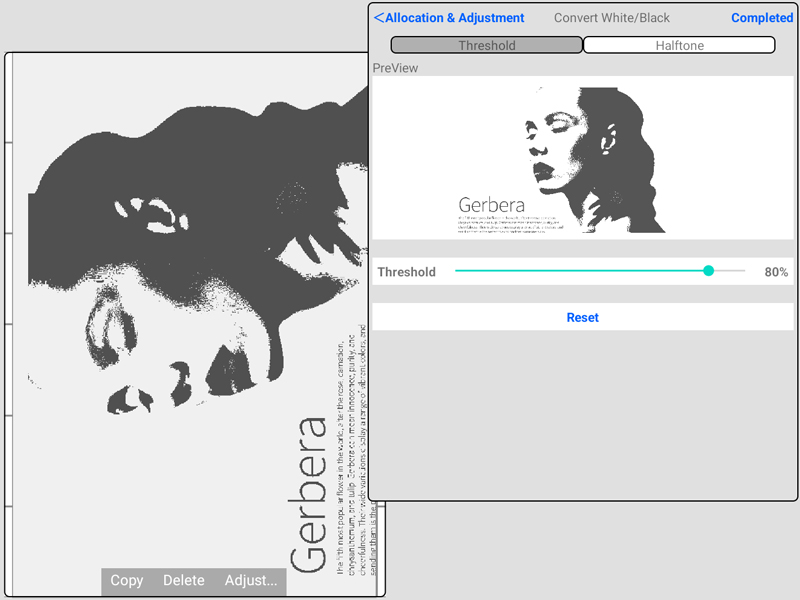
Fast Screen Making
App connection is fast with easy with multiple device connections allowed. In App usage is expanded to allow resizing and positioning of designs for real time work area usage.
What's in the Box?
Click here to see the Connection Kit specifications page.
Download the Leaflet - click here . . View the Setup Guide - click here . .Frequently asked question
Do Other USB Print Servers Work?
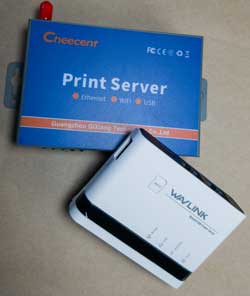
In short no. None that NEHOC have tested including USB dongles, USB 'Print Servers', PCI Cards and devises from many brand name manufactures (plus the cheaper AliExpress offerings alike!), none have worked successfully.
The NEHOC-SILEX contains server grade hardware with inbuilt USB detection and inbuilt software allocation enabling the MiScreen connection to operate.